Using the Softube Console1
Ardour has a good support for the Softube Console1 controller.
Connecting the Console1
Console1 comes with a single USB Socket on the back. Connect a suitable USB cable from there to a USB port on your computer.
Ardour uses the Console1 as a generic MIDI controller. You do not need to do anything to enable this—The Console1 sends and receives ordinary MIDI controller messages to/from the host, and the host understands the intended meaning of these messages. We note this detail to avoid speculation about whether Ardour supports the native mode, which sends MIDI Sysex Messages—it does not.
The Console1 will be automatically recognized by your operating system, and will appear in any of the lists of possible MIDI ports in both Ardour and other similar software.
To connect the Console1 to Ardour, open the Preferences dialog, and then click on “Control Surfaces”. Click on the “Enable” button in the line that says “Console1” in order to activate Ardour’s Console1 support. Then double click on the line that says “Console1”. A new dialog will open, containing two dropdown selectors that will allow you to identify the MIDI ports where your Console1 is connected.
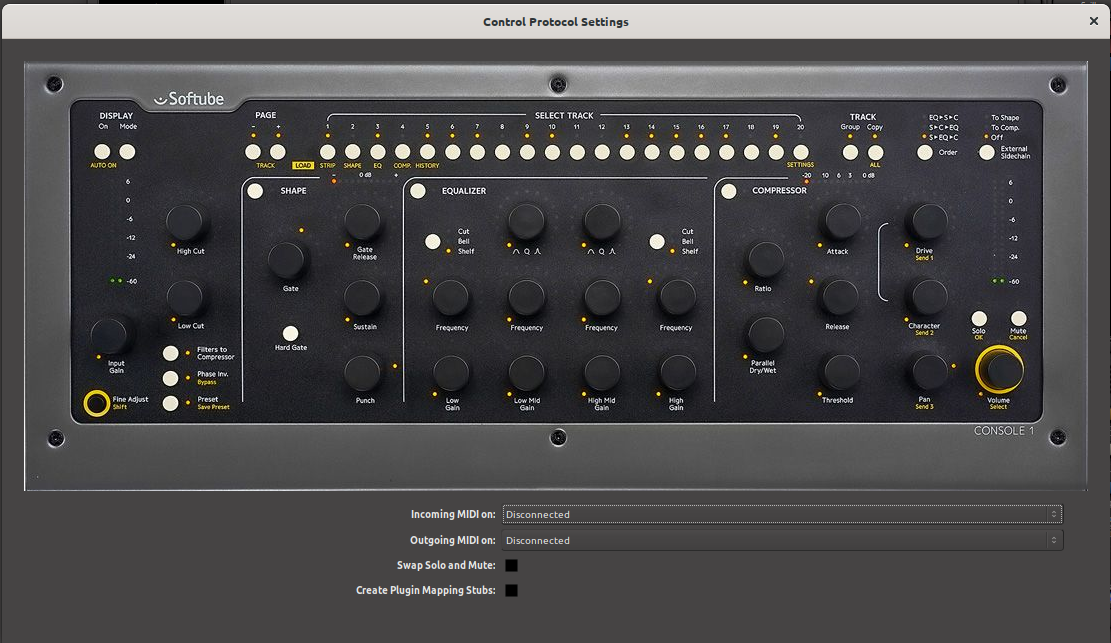
Once you select the input and output port, Ardour will initialize the Console1 and it will be ready to use. You only need do this once: once these ports are connected and your session has been saved, the connections will be made automatically in this and other future sessions.
Checkboxes
The checkbox “Swap Solo and Mute” does exactly that. In Ardour and Mixbus, these buttons are arranged exactly the other way round than in Console1. Since this can be irritating, the assignment can be reversed here.
Work in Progress
The checkbox “Create Plugin Mapping Stubs” automatically creates
mapping files for external plugins - if they does not already exists.
See the last section “External Plugins” for further information.
Harrison Mixbus & Mixbus 32c
A lot of functionality is developed to be used with Harrison Mixbus and
Harrison Mixbus32c, therefore the assignment of the controls might
sometimes feels a little arbitrary. However, in the future it might be
possible, to control plugins with this surface.
Controls only used by Harrison Mixbus (32c) are marked with
[Mixbus]
Controls inside a Mixbus only section which are working in Ardour as
well marked with [Ardour]\
Using the Console1
The button unfortunately does not work in the generic MIDI mode. Therefore the button is used as a shift button. In the following this will be simply referred to as the Shift button
The controls
General
Is lit when a mixer strip is in solo mode and can disables all solo modes.Rude Solo
Zooms to selection
/
Switches 20 mixer strips up or down. Only lit if there is another page/bank
.…
Select the nth mixer strip of the current bank.The Master channel is always the last mixer strip
/
Unused
[Mixbus]Switches between the compressor modes: Leveler/Compressor/Limiter — see Compressor section
Switches between Edit, Cue and Mixer Screen
Input
Trim
Input Meter
Unused
High Cut
[Mixbus]High Cut
Low Cut
[Mixbus]Low Cut
[Mixbus]Filters on/off
Switches the phase of all channels. If only one of more channels is switched in the GUI, the LED blinks
The Global ‘Shift’ button
Pan
Pan
Solo button for the mixer strip
Mute button for the mixer strip, blinks, when the mixer strip is muted due to another mixer strips Solo-Mode
Volume Meter
Shows the mixer strip volume
Volume
Sets the mixer strip volume
Shape-Section [Mixbus]
Switches the Gate section on or off
Shape Meter
Shows the Gain reduction of the gate
Gate
Threshold for the gate
Gate Release
Release time for the gate
Shift+Gate Release
Hysteresis for the gate
Sustain
Attack time for the gate
Shift+Sustain
Hold time for the gate
Punch
Depth for the gate
Shift+Punch
Sidechain filter frequency
Sidechain filter on / off
Shift+
Sidechain filter listen
Equalizer Section [Mixbus]
All encoders in the EQ section are working as sends if the shift button is activated. See the bus send section.
Switches the Equalizer section on or off
Low Gain
The Gain (reduction or boost) of the semiparametric bass eq
(Low) Frequency
The frequency of the semiparametric bass eq
Switches between Cut/Boost or Shelf (this uses only two of the three states
Low Mid Gain
The Gain (reduction or boost) of the semiparametric low mid eq
(Low Mid) Frequency
The frequency of the semiparametric low mid eq
(Low Mid) Shape
[Ardour]The eleventh send of a mixer strip / Send to the eleventh mixbus
High Mid Gain
The Gain (reduction or boost) of the semiparametric high mid eq
(High Mid) Frequency
The frequency of the semiparametric high mid eq
(High Mid) Shape
[Ardour]The twelfth send of a mixer strip / Send to the twelfth mixbus (see section Mixbusses)
High Gain
The Gain (reduction or boost) of the semiparametric treble eq
(High) Frequency
The frequency of the semiparametric treble eq
Compressor Section [Mixbus]
Switches the Compressor on or off
Compressor Meter
Shows the gain reduction of the leveler/compressor/limiter
Above this section Switches between the compressor modes: Leveler/Compressor/Limiter
Ratio
Ratio of the compressor
Parallel Dry/Wet
Makeup gain of the compressor
Attack
Attack time of the compressor
Release time of the compressor
Threshold
Threshold of the compressor
Sends
All Encoders in the equalizer-section are working as sends when
‘shift’ is selected.
Additionally the Low-Mid and High-Mid shape encoders are sends to the
mixbusses eleven and twelfe. The Idea behind this is to have some common
effects on this two mixbusses which are accessible without ‘shift’.
Currently, this is focused on Mixbus.
The functionality will be extended to fit better with Ardour in a second
development phase. However, if a mixer strip in Ardour has sends to
busses, these are accessible with the send encoders as well. These are
numbered from top to bottom. The topmost send can be changed by the send
1 encoder Shift+(Low) Frequency, the next
send below by the send 2 encoder Shift+(Low Mid)
Frequency and so on.
Shift+(Low) Frequency
Send 1
Shift+(Low Mid) Frequency
Send 2
Shift+(High Mid) Frequency
Send 3
Shift+(High) Frequency
Send 4
Shift+Low Gain
Send 5
Shift+Low Mid Gain
Send 6
Shift+High Mid Gain
Send 7
Shift+High Gain
Send 8
Shift+(Low Mid) Shape
Send 9
Shift+(High Mid) Shape
Send 10
(Low Mid) Shape
Send 11
(High Mid) Shape
Send 12
External Plugins
This is work in progress. But things described here are already working
but might be unstable!
Pressing Group will set Console1 into external plugin
mode. External plugins are all plugins in case of Ardour and in case of
Mixbus all plugins which are not a fixed part of the mixerstrips.
Group
Set or unset the Console 1 into “External Plugin Mode”
1-20
Select the plugin at position [selected number]. Pressing repeatedly then shows or hides the plugin.The LED of the selected channel stay on permanently, the channel LED of the plugin number stays in ‘blinking mode’.
Mute
Disables the plugin
All other assignements needs to be done with the mapping files. A stub of such a mapping file can be automatically created when the checkbox “Create Plugin Mapping Stubs” in the “Control Protocol Settings” dialog is enabled.
The mapping files are created in a subdirectory “c1mappings” of the Ardour/Mixbus settings directory
This is the example of a mapping file for the a-compressor. The file name is created from the unique URL of the plugin. In this case its urn:ardour:a-comp.xml
<?xml version="1.0" encoding="UTF-8"?>
<c1plugin-mapping
        ID="urn:ardour:a-comp"
        NAME="ACE Compressor">
        <param-mapping id="0">
                <name>Attack</name>
                <mapping shift="false">COMP_ATTACK</mapping>
        </param-mapping>

        <param-mapping id="1">
                <name>Release</name>
                <mapping shift="false">COMP_RELEASE</mapping>
        </param-mapping>

        <param-mapping id="2">
                <name>Knee</name>
                <mapping shift="false"></mapping>
        </param-mapping>

        <param-mapping id="3">
                <name>Ratio</name>
                <mapping shift="false">COMP_RATIO</mapping>
        </param-mapping>

        <param-mapping id="4">
                <name>Threshold</name>
                <mapping shift="false">COMP_THRESH</mapping>
        </param-mapping>

        <param-mapping id="5">
                <name>Makeup</name>
                <mapping shift="false">COMP_PAR</mapping>
        </param-mapping>

        <param-mapping id="6">
                <name>Sidechain</name>
                <mapping shift="false"></mapping>
        </param-mapping>
</c1plugin-mapping>
It is planned to allow creating the mapping file for the plugins inside the setup dialog. This, however, might take some time.