Cue Markers
Cue markers allow bridging linear and non-linear approaches to composing music. The idea is that a user can set up entire cues, then place a cue marker on the timeline to launch a cue of choice at a particular point in time. The workflow is explained in more details in the Mixing Linear and Non-Linear Workflows section.
Cue markers are displayed in the Location Markers ruler.

Adding Cue Markers
To add a cue marker, right-click on the Location Markers ruler, then selecting , and then selecting a marker between A and P in the submenu.
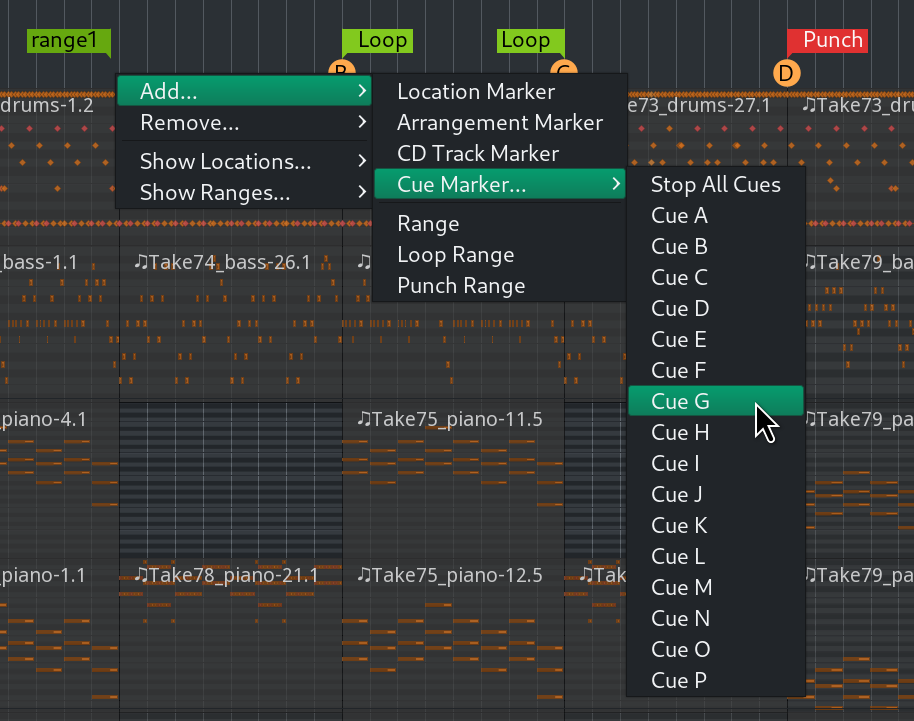
Moving Cue Markers
Left-clicking and dragging moves a single marker to a new location on the timeline.
It is possible to move multiple markers by the same distance. Left-clicking each marker creates a selection of markers that can be dragged left or right together.
Single marker
Left-clicking and dragging moves a single marker to a new location on the timeline.
Multiple markers
It is possible to move multiple markers by the same distance. Left-clicking each discrete marker, or Left-clicking the first and last markers of a range of markers selects them, then dragging one to a new location will move all selected markers together.
Stopping All Cues
Ardour has a special kind of a marker that immediately stops all playing cues. This marker () can be added via the right-click menu on the Cue Markers ruler.
Removing Cue Markers
Right-clicking on an existing cue marker opens the context menu with a number of options. Choosing will delete the cue marker of choice.
When all existing cue markers have to be removed, the best option is to right-click on the Cue Markers ruler (any place except an existing marker) and choose . This will delete all cue markers in the session.
More Options
The context menu for existing markers provides several more options:
Set Cue: |
Picking a cue from the list here will replace the selected marker with a marker for a different cue. |
Locate to Here |
This will move the playhead to the cue marker’s position. |
Play from Here |
This will move the playhead to the cue marker’s position and start playback. |
Move Mark to Playhead |
This will move the selected cue marker to the current position of the Playhead. |