UbuntuStudio/FeatureDefinitions/UbuntuStudioControls - Ubuntu Wiki
Source: https://wiki.ubuntu.com/UbuntuStudio/FeatureDefinitions/UbuntuStudioControls
UbuntuStudioControls
Ubuntu Studio Controls Feature Definition
Contents
-
Features System Info System Check Script Monitor System Resources System Settings Realtime Administration Swappiness CPU governor Third Party Application Control Jack Pulseaudio a2jmidid zita-a2j Third Party Application Launchers pavucontrol card mixer patchage Session Settings Systray/Indicator App Menu
-
System Settings Realtime Administration Swappiness CPU governor
-
Third Party Application Control Jack Pulseaudio a2jmidid zita-a2j
-
Third Party Application Launchers pavucontrol card mixer patchage
Resources
- UbuntuStudio/ControlsRedesign (outdated but shows direction)
UbuntuStudio/ControlsRedesign (outdated but shows direction)
Graphical Design:
AppIndicator
On systems that support it, there will be a menu in the app-indicator area:
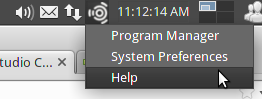
Features
Complete list of planned features. See further down the page for a more complete explanation.
System Info:
- Full system check script - make sure everything is in order
- Monitor system resources, such as DSP, CPU, Memory, Temp, CPU Hz
System Settings:
-
System setup wizard: Analyze system: if ok, show rt configuration toggle if not ok, ask to clean the system, and set default rt configuration Make Settings for each audio server (pulseaudio, jack) (alsa???) Jack Specific Settings: Select jack (jackd1, jackd2, jackdmp) Select and test default audio device (button to a alsa mixer for that card, for setting levels) Enable/disable autostart at login Enable/disable alsa to jack midi bridge Pulseaudio Specific Settings: Select and test default audio device (button to a pulseaudio mixer, for setting levels Enable/disable autostart at login Enable/disable pulseaudio to jack bridge (greyed out when using jack1, perhaps even jack2) Select default kernel Select default CPU governor Set Swappiness Perform a system test, and ask if to send it
(anonymous info only) -
Realtime Administration (per user control: audio group and security/limits file)
-
swappiness
-
CPU governor
-
Analyze system: if ok, show rt configuration toggle if not ok, ask to clean the system, and set default rt configuration
-
Make Settings for each audio server (pulseaudio, jack) (alsa???) Jack Specific Settings: Select jack (jackd1, jackd2, jackdmp) Select and test default audio device (button to a alsa mixer for that card, for setting levels) Enable/disable autostart at login Enable/disable alsa to jack midi bridge Pulseaudio Specific Settings: Select and test default audio device (button to a pulseaudio mixer, for setting levels Enable/disable autostart at login Enable/disable pulseaudio to jack bridge (greyed out when using jack1, perhaps even jack2)
-
Select default kernel
-
Select default CPU governor
-
Set Swappiness
-
Perform a system test, and ask if to send it
(anonymous info only) -
if ok, show rt configuration toggle
-
if not ok, ask to clean the system, and set default rt configuration
-
Jack Specific Settings: Select jack (jackd1, jackd2, jackdmp) Select and test default audio device (button to a alsa mixer for that card, for setting levels) Enable/disable autostart at login Enable/disable alsa to jack midi bridge
-
Pulseaudio Specific Settings: Select and test default audio device (button to a pulseaudio mixer, for setting levels Enable/disable autostart at login
-
Enable/disable pulseaudio to jack bridge (greyed out when using jack1, perhaps even jack2)
-
Select jack (jackd1, jackd2, jackdmp)
-
Select and test default audio device (button to a alsa mixer for that card, for setting levels)
-
Enable/disable autostart at login
-
Enable/disable alsa to jack midi bridge
-
Select and test default audio device (button to a pulseaudio mixer, for setting levels
-
Enable/disable autostart at login
Perform a system test, and ask if to send it
Third Party Application Settings:
-
jack set device I/O (hw:
, preferably also by pci number) samplerate latency (simple and advanced control) take snapshot of connections -
pulseaudio set device I/O volume control
-
a2jmidi
-
zita-a2j
-
set device I/O (hw:
, preferably also by pci number) -
samplerate
-
latency (simple and advanced control)
-
take snapshot of connections
set device I/O (hw:
- set device I/O
- volume control
Third Party Application Launchers:
- pulseaudio (desktop audio) mixer
- card alsa/ffado mixer (correct mixer is launched, based on running audio device)
- patchage, for making jack connections
Session Settings:
-
Profiles/Modes (each profile can have different session settings) autostart jack y/n autostart a2jmidid y/n autostart pulseaudio y/n autostart pulse-to-jack-bridge y/n auto-set jack as input y/n auto-set jack as output y/n default CPU governor mode
-
autostart jack y/n autostart a2jmidid y/n
-
autostart pulseaudio y/n autostart pulse-to-jack-bridge y/n auto-set jack as input y/n auto-set jack as output y/n
-
default CPU governor mode
-
autostart a2jmidid y/n
-
autostart pulse-to-jack-bridge y/n
-
auto-set jack as input y/n
-
auto-set jack as output y/n
Quick buttons:
- (Desktop audio volume - pulseaudio)
- Profile/Mode - Low Latency(monitoring), High Latency(mixing), Power Saving(desktop usage)
- Reset (resets everything, and possibly restarts all audio servers)
System Info
System Check Script
Abstract: A system script for making sure there are no problems in the system. Great for troubleshooting.
Actions:
- autorun at login (silently in the background)
- print full report in home folder
- check: kernel type
- check: irq conflicts
- check: (etc..)
Graphical IF:
- toggle for notifying of errors/problems at login
- button for manual check
Monitor System Resources
Abstract:
Actions:
Graphical IF:
System Settings
Realtime Administration
Abstract:
Actions:
-
list only "real" users
-
add selected user to correct group
-
make sure correct group has rtprio and memlock privileges
-
check the kernel if rtprio and memlock are the same as settings if there is no rtprio or memlock at all, ask the user to reboot for changes to have effect if there are conflicting values, advice the user that there is a conflicting settings file in /etc/security/
-
if there is no rtprio or memlock at all, ask the user to reboot for changes to have effect
-
if there are conflicting values, advice the user that there is a conflicting settings file in /etc/security/
Graphical IF:
Select user from a menu, and toggle rt privilege for that user.
Swappiness
This setting requires root privilege, and a reboot for changes to have effect
Abstract: The default Ubuntu setting is no good for desktop/multimedia production use. 10 is a good value. But, the user could be allowed to change it to something else too. What are good values here, and what are min-max values?
Actions:
- Set a new value for swappiness in a custom file at /etc/sysctl.d/*
Graphical IF:
- Slider to set swappiness from 0-?
CPU governor
Abstract: In order to change the cpu governor on the fly, we'll need access to do so.
Actions:
- ?
Graphical IF:
- Display available governors as radio buttons.
Third Party Application Control
The makeup of Linux Audio requires the use of several different applications/servers. Ubuntu Studio Controls will try to simplify setting those up, by including controls for the most useful ones.
Jack
Abstract:
Actions:
- autostart option
- set audio device (persistent between boots)
- set samplerate
- set latency (two settings)
- make snapshot of connections
- Choose between jackd and jackdbus (and show info on what is installed)
Graphical IF:
Pulseaudio
Abstract:
Actions:
- autostart option
- set audio I/O (jack should be persistent)
- pulse to jack bridge enable/disable
Graphical IF:
a2jmidid
Abstract:
Actions:
- autorun when jack starts option
Graphical IF:
zita-a2j
Abstract:
Actions:
Graphical IF:
Third Party Application Launchers
As there already are lots of good guis for different functions, we can make use of those as a part of the Ubuntu Studio Controls solution for controlling and setting up audio.
pavucontrol
Abstract:
Actions:
Graphical IF:
card mixer
Abstract: Some cards have special mixers, such as firewire devices, and some pci cards.
Actions:
- launch appropriate mixer for card in use
Graphical IF
patchage
Abstract:
Actions:
Graphical IF:
Session Settings
Abstract:
Actions:
- save profile
- select profile
- select default profile
Graphical IF:
Systray/Indicator App Menu
Abstract:
Buttons/Submenus:
-
Profiles/Modes Profile1 Profile2 etc..
-
Settings
-
Help/Troubleshooting Help Documentation Chat with other users Full Systemcheck
-
Reset Audio
-
Profile1
-
Profile2
-
etc..
-
Help Documentation
-
Chat with other users
-
Full Systemcheck
UbuntuStudio/FeatureDefinitions/UbuntuStudioControls (last edited 2016-02-15 14:56:00 by h-141-65)